
How to setup your TXAdmin Server and Login to TXAdmin
Once you have purchased your TxAdmin Server, our service will automatically (in most cases), begin setting up your server to the requested configuration.
Once the server has been successfully setup, you should receive an email from our Game Hosting Panel. If you do not see this, please check you spam folder. If you did not receive this email, please open a support ticket.
Once you have the URL of the Game Server, you will need to login to the TCAdmin Panel with the specified Username and Password provided in the email.
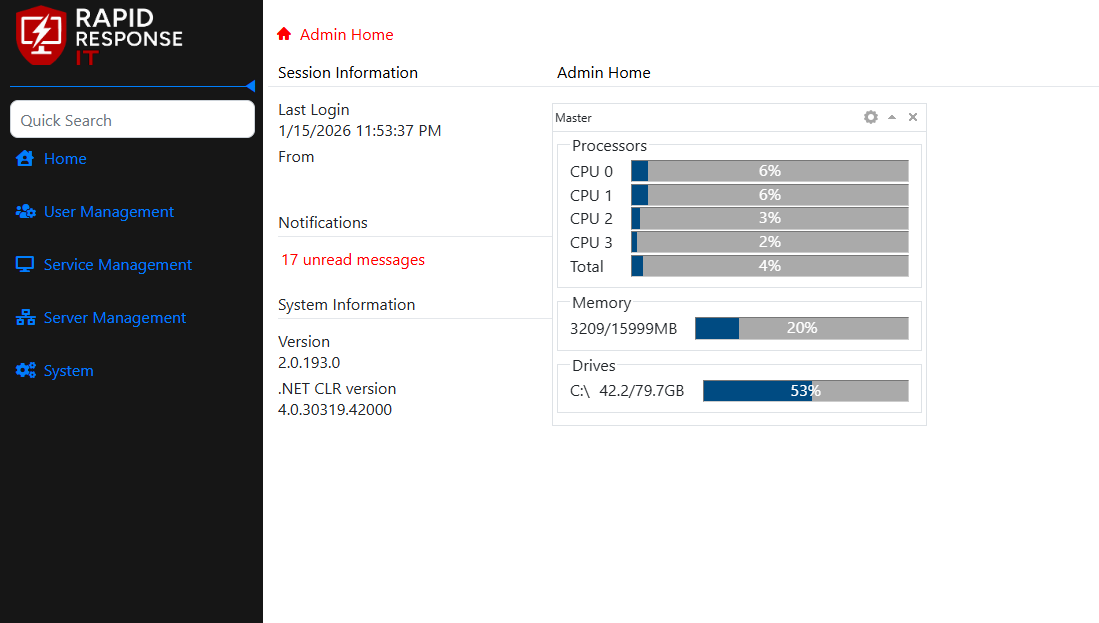
Once you have logged in, your screen may look as follows:
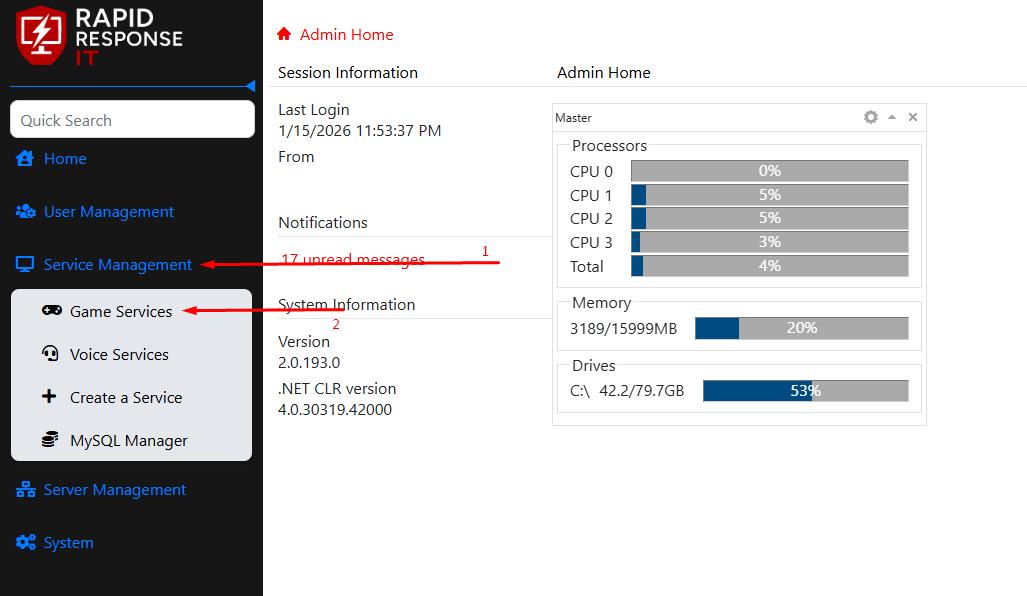
Next, you want to click "Service Management" (1) then, "Game Services" (2). If there are multiple services, choose the service you wish to edit.
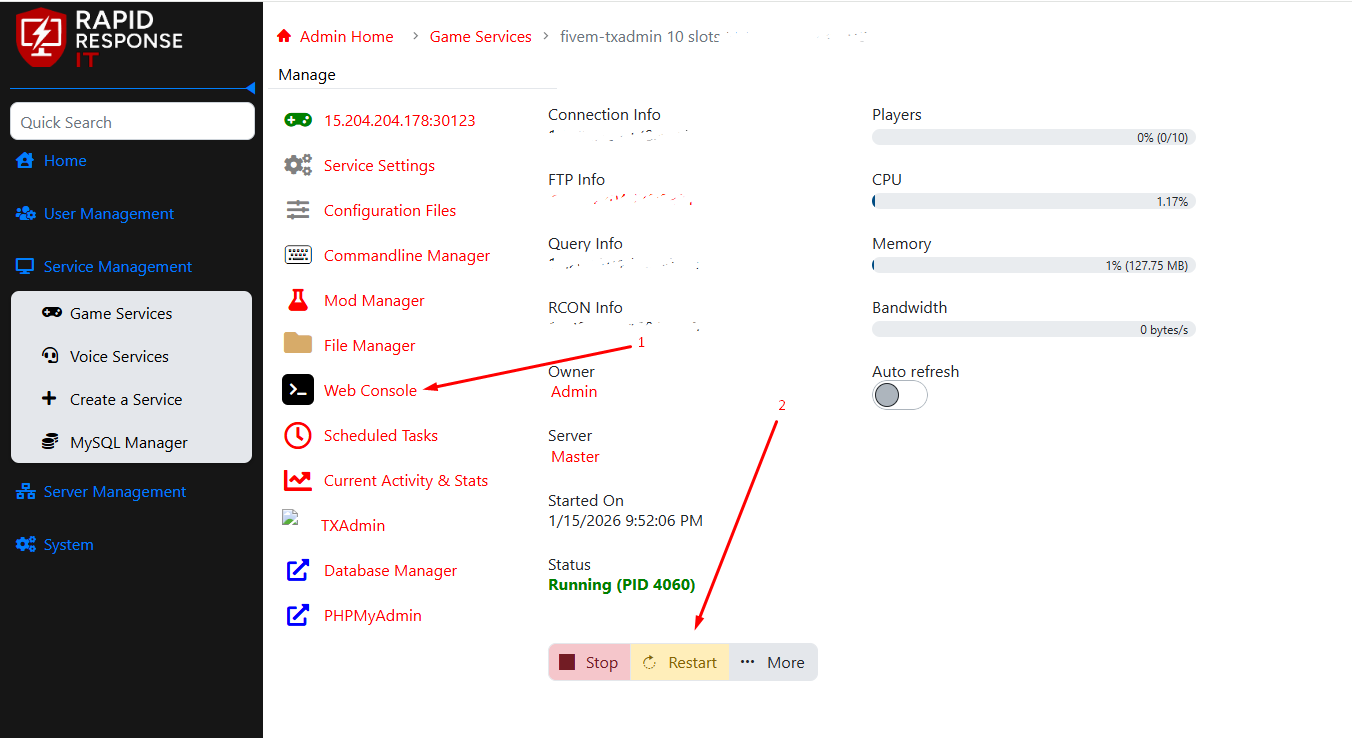
Once you have selected the service, go to the TXAdmin button (1) on the left navigation bar, right-click it and open in new window. Then Restart (2) the server.
Once the server has come back online, refresh the TXAdmin window, and enter the code shown on the console window (You do not have to refresh the console window).
Configuration for FiveM
Depending on the type of FiveM Server you are looking for, we have easy recipes for you to create your server using, such as (but not limited to) QBCore, QBus Core, VORP, ESX, or Basic Framework.
Select the one you would like, and complete the following prompts.
Database
All servers come with 1 Free MySQL Database, use the database manager to create databases, and the PHPMyAdmin to enter the database and manipulate data.
If you need Support
Please feel free to create a support ticket online, via the billing portal. If you need immediate support, you can always call us at (904) 580-0763 and choose the most appropriate option.